
AI photo background changer
Photo Background Changer: Change the Background of a Photo
Upload a photo and AI changes its background to a scene you describe, a preset or a solid color, while the person or product stays as it is. First AI edit free, then $0.50. A transparent PNG of a portrait is free, made in your browser.
Describe the new background
First AI edit free · then $0.50 an edit · no subscription
Upload a photo to start, or try the sample portrait.
Example: "a sunny beach at golden hour"
Real result · drag to compare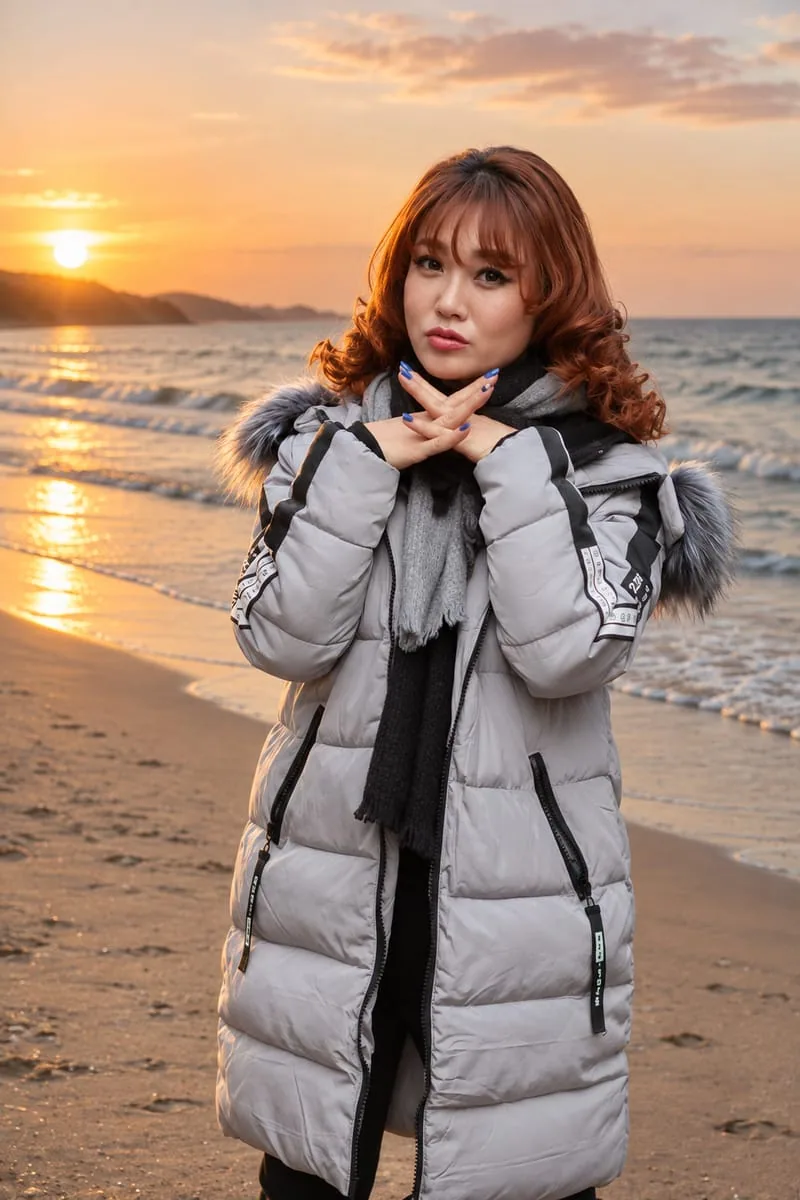
Real results, not mock-ups
Photo background changer examples: before and after
Drag across each picture to compare. A portrait from a sentence, a product on plain white, and a free cut-out: three modes of the same studio.
- BeforeAfter
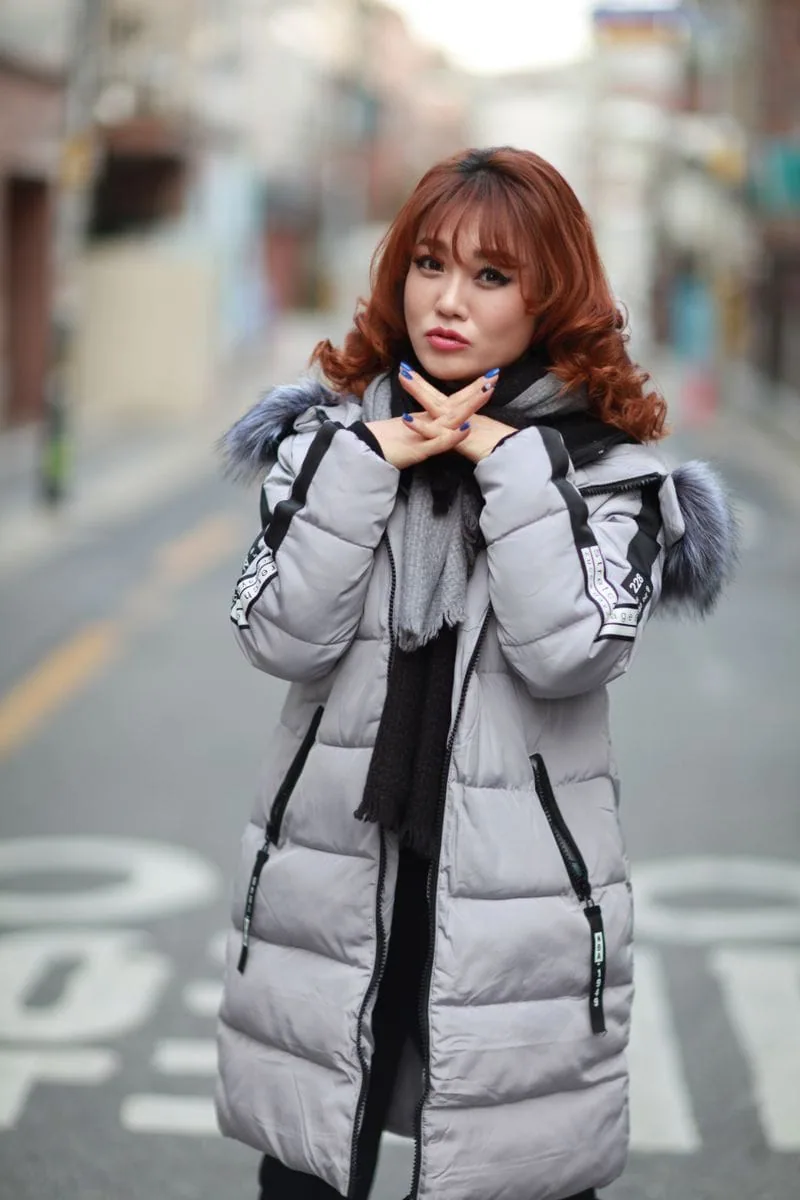
A new scene from a sentence
Typed "a sunny beach at golden hour": the city street became a beach, and the woman, her coat and her pose stayed the same.
- BeforeAfter
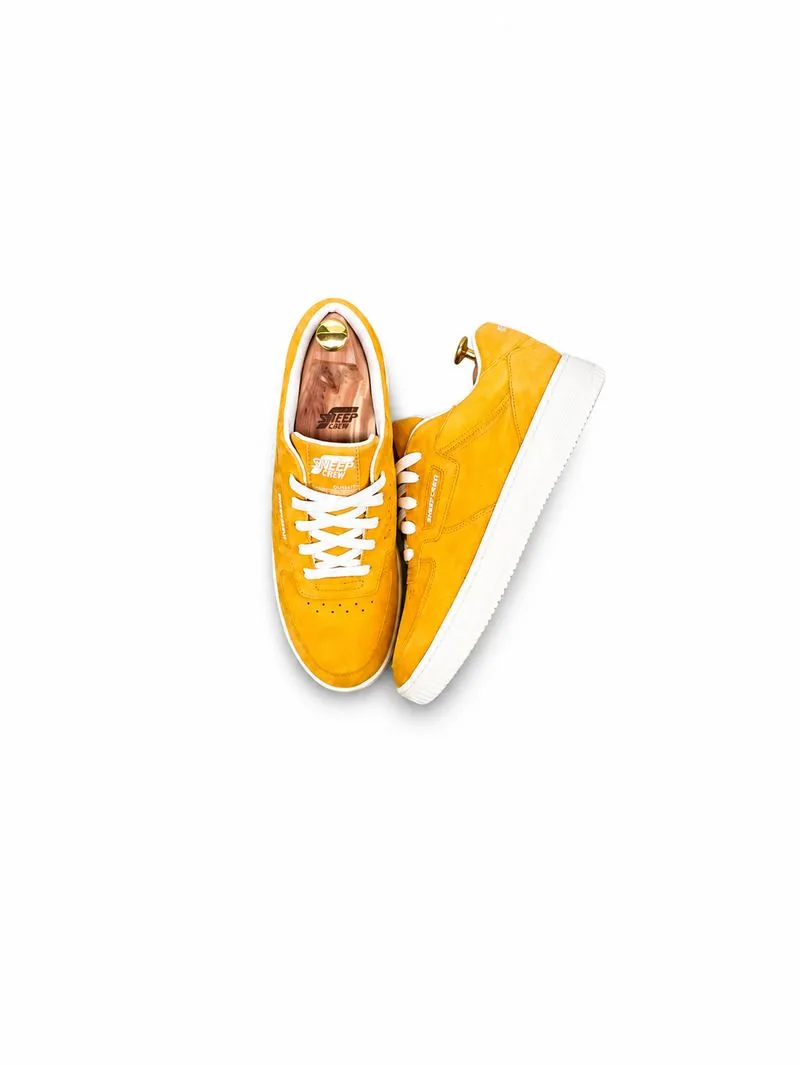
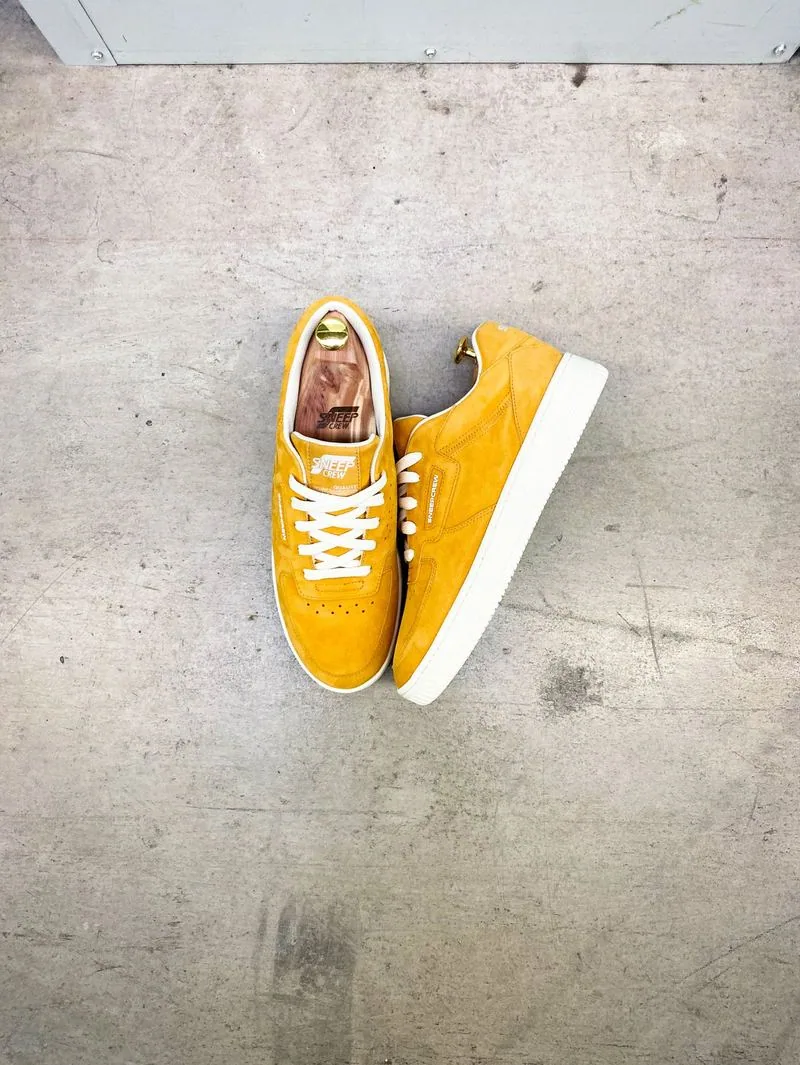
A product photo on pure white
Color mode with White on a product shot taken on a floor: the old surface is gone, the shoes keep their shape and colors, and a soft contact shadow keeps them from floating. The same mode puts a portrait on white.
- BeforeAfter
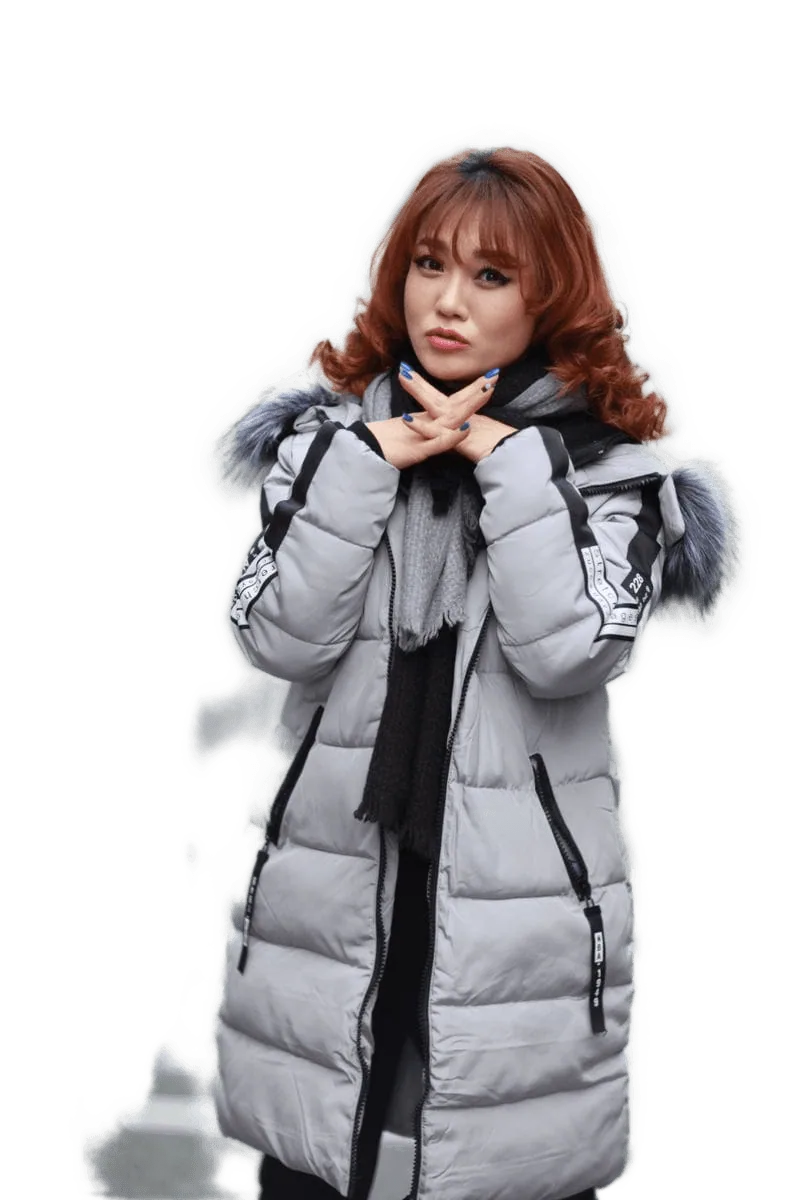
A transparent PNG, free
Remove BG cut the woman out on this device, with no sign-in, and saved a PNG with nothing behind her.
The portrait is "Portrait of a Woman in a City" by 거열 박 on Pexels (pexels.com/@geoyul); the sneakers are "A Pair of Beautiful Sneakers on the Floor" by Sneep Crew on Pexels (pexels.com/@sneepcrew). The beach and white results are single, unretouched AI results, scaled to each photo's size for the slider. The transparent PNG is the free in-browser cut-out as it came out, made with MODNet, the engine most devices run, including a faint trace of the road at the bottom left.
Usually under a minute
How to change the background of a photo in four steps
- 01
Upload the photo
A JPG, PNG or WebP up to 10 MB: a portrait, a selfie, a pet or a product. A clear subject that stands out from what is behind it gives the cleanest edges.
- 02
Choose the new background
Describe it in a sentence, pick one of 12 scenes, choose white or any solid color, or say how to edit the background you have, such as blurring it.
- 03
Press Try free
Sign in when you press it, and your photo and choice wait for you. Your first AI edit is free; after that an edit is 125 credits, which is $0.50.
- 04
Compare and download
Drag across the result to compare it with your photo, then download it. Every AI edit stays in My edits, so you can come back to it.


- Photo studio
- Marble tabletop
- Beach
- Modern office
- City street
- Forest
- Mountains
- Living room
- Café
- City at night
- Sunset sky
- Christmas
Keep the photo, change what is behind it
What people use a photo background changer for
Reshooting a photo for a better background takes a new location, new light and a new session. These are the jobs people change the background for instead.
- 01
A clean selfie, headshot or CV photo
Use it as a selfie or headshot background changer: put a portrait taken at home on plain white, light gray or a soft studio backdrop for LinkedIn, a CV or a team page.
- 02
Product photos for a listing
Set a product shot on white or a solid color for a shop listing, or on a marble tabletop or in a studio with a scene.
- 03
A cut-out for a design
Get a portrait on a transparent PNG, free, to drop into a slide, a thumbnail or a poster. Best on people.
- 04
A new place for a portrait
Move a photo from a plain wall to a beach, a café, a mountain view or a city at night, from a sentence or a scene.
- 05
A tidier version of the same place
Keep the background but blur it like a portrait lens, brighten it, or clear the clutter out of it.
- 06
A seasonal or themed photo
Put a family or pet photo in front of a Christmas tree, a sunset sky or a forest for a card or a post.
Get it right the first time
Tips for a photo background change that looks real
- 01
Start from a sharp, well-lit subject
A subject in focus, with its edges clearly apart from what is behind it, keeps clean hair and outlines. Heavy blur or a subject that blends into the background is harder.
- 02
Describe light as well as place
"A beach at golden hour" or "a bright office with large windows" tells the model which light to match, so the subject looks like it was really there.
- 03
Use Color mode for products and pets
The free transparent PNG is made for people. For a product or a pet, white or a solid color in Color mode gives the cleaner result.
- 04
Check the face and the edges
AI image models can change a small detail. Compare with the slider, look at the face, hands and hair, and run the edit again if something is off.
One-time, no subscription
Photo background changer price: first edit free, then $0.50
Every account gets one free AI edit. After that, each AI edit is 125 credits, which is $0.50, and a one-time $5 purchase adds 1,250 credits: ten edits. Removing the background of a portrait to a transparent PNG is free.
- First AI edit free for every account, no card needed
- 125 credits ($0.50) for each AI edit after that
- $5 one-time for 1,250 credits: ten edits, no subscription
- Credits come back when an edit fails
- Transparent PNGs of people: free, in your browser, no sign-in
Photo background changer: questions and answers
How do I change the background of a photo?
Upload the photo, choose a new background (describe it, pick a scene, or choose white or another color) and press Try free. AI replaces what is behind the subject and matches the light, while the person or product stays as it is. There is nothing to install and no selecting or masking by hand.
Can I change the background of a photo online for free?
Yes, a photo background change online is free to try: your first AI edit is free, so you can change the background of a photo free after you sign in, with no card needed. After that each AI edit costs 125 credits ($0.50), bought as a one-time $5 pack of ten edits, with no subscription. Removing the background of a portrait to a transparent PNG with Remove BG is always free and needs no account. If the site's free edits for the day are used up, you can still edit with credits.
Can I make the background transparent for free?
Yes, for photos of people. Remove BG cuts the person out in your browser and saves a transparent PNG at the size of your photo, with no sign-in. It is made for portraits; for a product or a pet, a white or solid color background in Color mode is cleaner. The first time, the browser downloads the AI model once, so later cut-outs start sooner.
Does my photo leave my device?
For Remove BG, no: the AI runs on your device and the photo is never uploaded. For the AI modes (describe, scene, color and edit), the photo is uploaded so the model can work on it, and the result is saved in My edits.
Which AI does the photo background changer use?
The AI modes use gpt-image-2, the image model from OpenAI, through our AI gateway. Every edit asks it to keep the subject exactly as it is (face, pose, hair, clothes, shape and colors) and to match the new background's light, shadows and perspective to it.
What photos can I use in the photo background changer?
Any JPG, PNG or WebP up to 10 MB. A photo of a person works best; pets and products work in the AI modes too. Upload only photos you have the right to use.
Does the photo background changer keep the size of my photo?
The transparent PNG keeps the pixel size of your photo; only very large photos, beyond what a browser can draw on one canvas, are scaled down. An AI edit asks the model to keep the subject in the same place and the framing of your photo, so the new background lines up with the old one when you compare them.
How long does it take to change a photo background?
An AI edit usually takes under a minute. You do not have to keep the page open: the result appears when it is ready and is saved in My edits.
What if the result is not right?
If an edit fails, its credits come back to your balance, and a failed free edit can be tried again. An edit that finishes but is not what you wanted still counts, so describe the place and its light clearly, and try again with a different description or scene.
Are my photos private? Do you train AI on them?
Photos you upload for an AI edit and their results are stored at long, unguessable addresses and are not listed anywhere, and we do not use them to train AI models. Write to contact@photo-background-changer.com and we delete them within 30 days.
Same studio, other jobs
More ways to change the background of a photo
- Transparent background makerCut a person out of a photo to a transparent PNG, free and in your browser.
 Make background whitePut a portrait or a product on pure white for a profile, a CV or a listing.
- Background color changerAny solid color behind the subject: light gray, black, blue, red, cream or one you pick.
 AI background generatorDescribe a place, or pick one of 12 scenes, and AI builds it behind your subject.
 Edit photo backgroundKeep the background you have but blur it, brighten it or clear the clutter out of it.
- Add background to photoGive a cut-out or a photo with a plain background a new scene, a color or a place you describe.
- Passport photo white backgroundPut an ID or passport photo on white, light gray or passport blue, then check the office's rules.
 Remove person from photoTake strangers, tourists or a photobomber out from behind the subject.